Getting started
Set up your Kourai.
Plug in the hub, set up the cameras, then finish in the app.
What you’ll need.
- Kourai HubWith its power adapter and Ethernet cable, in the box.
- Supported camerasIncluded with the first systems, or use your own.See which
- A free router portThe hub connects by cable. It has no Wi-Fi.
- An iPhoneWith iOS 17.6 or later.
Step 1
Plug in the hub.
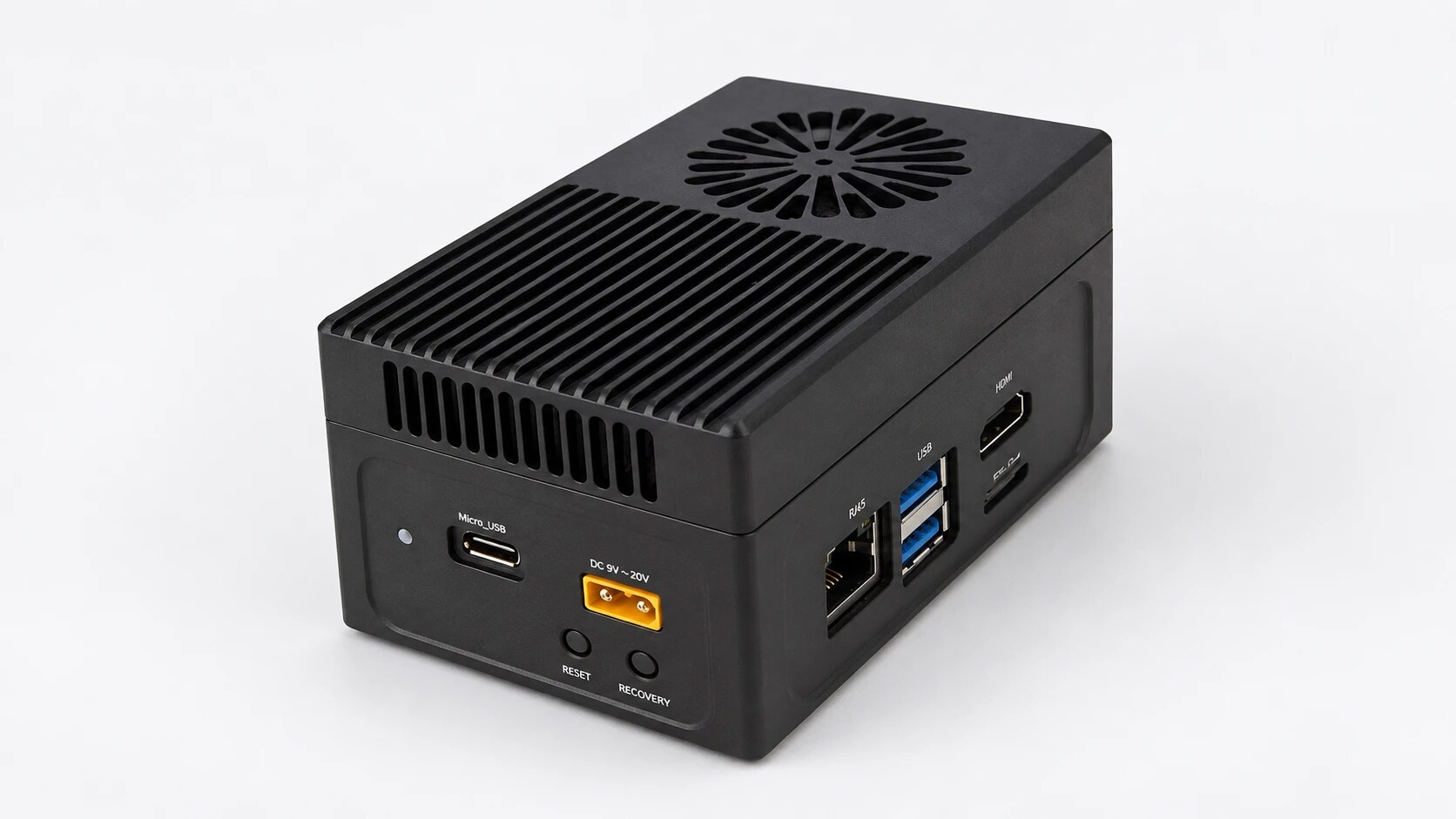
Find it a spot indoors with air around it, like a garage, utility room or closet. It has a small fan you may hear.
Connect Ethernet.
One end into the hub’s Ethernet port, the other into your router.
Connect power.
Plug the adapter into the hub’s yellow power port, then into a wall outlet.
Let it start.
It turns on by itself. Leave it plugged in from now on.
Use an outlet that isn’t on a light switch.
Step 2
Set up the cameras.
Mount the cameras, aim them at your pool and property, then walk the yard with your phone to calibrate. Kourai builds a 3D model of your home, and the app lets you know when it’s ready. With the first systems, we set this up with you.
Steps 3–8
Finish in the app.
A few minutes in the Kourai app, and your home is yours.
Step 3: Get the app.
Download Kourai from the App Store. When it asks, allow notifications and Critical Alerts, so urgent alerts get through even on silent.
Kourai on the App StoreStep 4: Create your account.
Sign up with your phone number, Google or Apple. With a phone number, enter the 6-digit code Kourai texts you.
Step 5: Scan your hub.
Tap Scan QR Code and point your phone at the QR code on the side of the hub.
The first person to scan manages the system, so scan it before anyone else in your household.
Step 6: Agree to the terms.
After a short introduction, check both boxes to accept the Terms of Service and the Privacy Policy, then tap Agree and continue.
Read the Terms of ServiceStep 7: Help improve Kourai.
Choose whether your hub shares data with Kourai. Sharing helps us make Kourai better at keeping children safe.
It’s up to you. Change it any time in Account, under Data Collection.
Step 8: Tell Kourai about you.
Add your name, your birth date and how well you swim. A photo is optional.
Step 9
You’re all set.
Once your home is ready, the app opens to it, live. When it’s time to start your subscription, the app asks you to choose a plan.
Good to know.
Invite your household.
In Account, tap Add New Invite. Each person gets alerts on their own phone once you let them in.
Keep the hub plugged in.
To restart it, unplug the power, wait 10 seconds and plug it back in.
Leave the cameras be.
They’re aimed and calibrated. If one gets bumped, let us know.
Keep the views clear.
Wipe lenses with a soft cloth. Keep umbrellas and plants out of the view.
Updates come overnight.
Kourai tells you when one starts and when it’s done. Keep an eye on the pool in between.
A second set of eyes.
No system replaces an attentive adult. In an emergency, call 911.
If something’s not right.
The app says the hub is offline.
Check that the power and Ethernet cables are firmly in, and that your internet is working. Then restart the hub: unplug the power, wait 10 seconds and plug it back in.
The QR code won’t scan.
Wipe the code and add some light. If it still won’t scan, tap Enter Code Manually and type the code instead.
The app says I’m waiting to be let in.
Someone in your household has already set up Kourai. Ask them to let you in from their Profile settings.
I’m not getting alerts.
In your iPhone’s Settings, tap Notifications, then Kourai, and turn on Allow Notifications and Critical Alerts.
A camera got bumped or moved.
A moved camera needs to be calibrated again. Contact us and we’ll help.
Still need help?
Email us and we’ll help.
Kourai alerts your phones, not a monitoring center. In an emergency, call 911.